
Feature Overview: How To Use Buildups
Updating multiple items individually can be time-consuming, especially when a single change affects several tasks within one of your projects. The Buildups feature allows you to make top-level changes, automatically updating all the associated materials, labour, and costs without you needing to manually edit each row. In this guide, we’ll show you how to use Buildups to make project updates faster and keep your estimates accurate with minimal effort.

What Exactly Is A Buildup?
In BuildPartner, a “buildup” is the recipe used to calculate the cost of a specific task. Instead of just assigning a flat price to a job (like "£50 for painting a wall"), the system builds up the cost from its core components.
Every task in the schedule is broken down into three components. For example, “Paint internal wall”:
- Materials: The physical items required to complete the task, including the specific materials used and quantities needed per unit of measurement (e.g., paint and litres required).
- Labour: The trade required and time needed to complete the task (e.g., painter, 0.2 hours per square metre).
- Plant & Equipment (if applicable): Any specialist tools or machinery required that aren’t standard hand tools (e.g., access towers or specialist spraying equipment).
So, when you add a task to a room, the system uses the room’s dimensions (like wall area) to determine the total quantity needed. It then multiplies that quantity by the buildup. Because Buildups are dynamic, if you change a room’s size, the material quantities and labour hours automatically adjust.
Let’s look at an example.
How To Use Buildups
To get started, log into your BuildPartner account and head to the Schedule tab. Here, you’ll see a Buildups icon at the centre towards the top of the screen. Click the word Buildup rather than the dropdown arrow (we’ll come to that shortly).
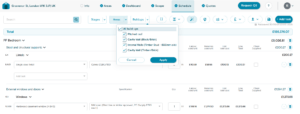
This reveals an expandable breakdown of the costs of specific tasks associated with each storey. This view looks similar to “Areas” and “Stages” in the Schedule.
From a practical perspective, the Buildups feature allows you to edit tasks in just a few clicks, rather than manually updating rows of items line by line.
For example, you can change a roof buildup from pitched to flat without having to manually add and remove multiple rows of information associated with each build type.
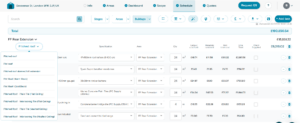
To change the pitched roof, click the dropdown arrow of the button on the left side of the screen. When you click it, you’ll be presented with a bunch of options. Changing from a pitched roof to a flat roof automatically updates the project costs.
You’ll notice that certain tasks associated with a pitched roof disappear, such as:
- Timber pitched roof structure
- Pitched roof vent
- Concrete plain tiles
And these are replaced by specific tasks related to building a flat roof:
- Timber flat roof structure
- Timber firrings to roof
- Flat roof vent
This is where the true utility of Buildups comes in. You can make significant changes to a project’s specification in seconds, with all associated tasks, materials, labour, and costs automatically updated. This makes it much easier to respond to client changes and explore different options to align with their budget.
Some of the most commonly adjusted Buildups include switching between brick/blockwork and timber construction, changing roofing types from pitched to flat, and updating internal walls from stud to concrete.
Toggling My Buildups View
You can see which Buildups your project is using by clicking on the drop-down arrow next to the word Buildups. Please note: deselecting items in the Buildups list does not remove them from the project costs. It simply hides them from view, making it easier to navigate without having to scroll through dozens of rows of pricing data.
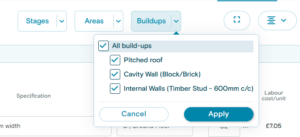
As ever, you remain in complete control. At any time, you can manually adjust the specifications of each task by selecting the relevant dropdown, changing the required quantity, marking a material as client supplied, or removing an item altogether.

We’re always improving BuildPartner to help you make changes faster, reduce manual updates, and keep your project costs accurate. If you have any feedback on how you’re using Buildups or suggestions for future improvements, we’d love to hear from you. Please email us at [email protected].