
Feature Overview: Changing Specifications & Bulk Editing
BuildPartner’s specification and bulk editing tools make it simple to update materials, costs, and project details without having to make changes individually. This guide explains how to make those changes to keep your project pricing consistent and accurate.

Changing A Project’s Specification
Quite often, clients will change their minds about a project’s specifications. There’s a super-easy way to change a project’s specification in BuildPartner without having to create another from scratch.
At the top of the Schedule page, look for the icon that looks like 3 lines (usually next to the paintbrush icon). Click it to reveal a drop-down list: Low, Medium, and High.
- Low spec includes more budget-friendly brands such as Leyland, Everest, and Wickes.
- Medium spec includes widely used brands such as Dulux, Hamilton, and Slim Line.
- High spec includes premium brands such as Farrow & Ball, Fine Line, and Siemens.
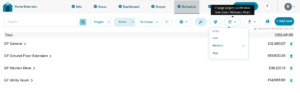
Choose your preferred specification. It’s as simple as that!
Now, your client may still request certain materials of a particular specification. For instance, to balance their budget, they may insist that a low spec is used throughout an entire house, but they may want a high-spec bathroom suite.
In that case, on the “Schedule” tab, you can manually change the project areas and tasks by selecting the relevant dropdown in the Specification column.
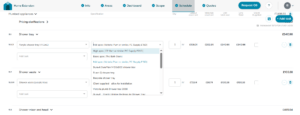
For example, the available acrylic shower tray options based on material costs include:
- Low spec: The Bath Store – £135
- Mid spec: Victoria Plumb or similar – £202
- High spec: CP Hart or similar – £270
Using The Bulk Edit Function
When navigating the interface, you might have noticed the bulk edit function at the top of the Schedule page. It can be toggled on and off, but what does it actually do?

Once switched on, it monitors for changes that could apply to similar tasks and prompts you when an update opportunity is available. You remain in control, with changes only applied when you choose to update similar tasks.
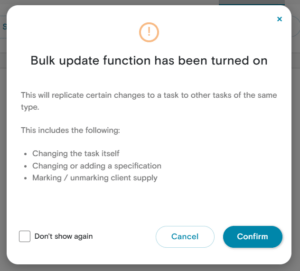
Some of these changes include:
- Changing the task itself
- Changing or adding a specification
- Marking/unmarking “Client Supplied”
For example, suppose you check the box “Client Supplied” for skirting in the kitchen; it would pop up with a message:
“We’ve detected 5 tasks named ‘Skirting’. Would you like to make this change to all of them?”
Or suppose you changed the electric towel rail from standard spec to mid spec:
“We’ve detected 2 tasks named ‘Electric towel rail’. Would you like to make this change to all of them?”
When this popup box appears, you have two options:
- “No, this task only”
- “Update similar tasks”
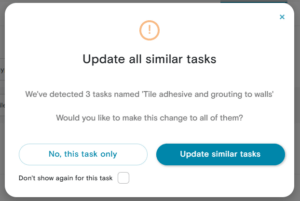
So rest assured, no significant changes will be made to your projects without your authorisation.
We’re always improving BuildPartner to help you work faster, reduce manual updates, and simplify project management. Let us know how you’re finding things or what you’d like to see by emailing us at [email protected]