
Feature Overview: Exporting Excel, PDFs, and Word Documents
Different projects call for different ways of working with your information. BuildPartner makes it easy to turn your project data into professional, accurate documents in the format you need. Export to Excel when you need to search, filter, analyse or apply your own calculations and formulas to project data.
For client-facing documents, PDF exports provide a professional way to present your project, whether that’s a detailed cost breakdown for transparency or a polished project brochure for larger tenders. In this guide, we’ll look at the different export options available, from detailed Excel spreadsheets for managing costs and validating prices to professional PDF and Word documents for sharing with clients.

Exporting an Excel Spreadsheet
To export a spreadsheet, PDF or Word document, head to the Schedule tab in BuildPartner and select the down-arrow icon in the top-right corner, just to the left of the Save icon.
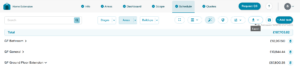
When you select either option, a pop-up window will appear, giving you a range of checkboxes to customise what’s included in your export.
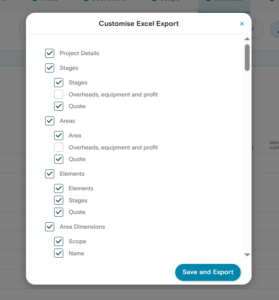
While there are lots of options, most of which are checked by default, there are two significant things you may want to consider:
- Adding VAT
- Overheads, equipment and profit
Make sure VAT is selected if you want it included in your export, and if you’ve set default rates for overheads, equipment and profit in BuildPartner, select them under Stages and Areas to include them as well.
Once you’ve selected your preferences, click Save and Export. Your Excel spreadsheet will then download automatically, usually within around 10 seconds.
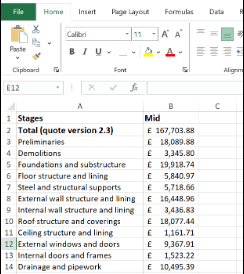
The first tab is the Stages tab, which provides a breakdown of all the stages within your project. You can sort costs from largest to smallest to quickly see which stages have the biggest overall impact, or add percentages to compare their relative contribution.
That’s where Excel really comes into its own, making it easy to sort, filter and analyse your project costs.
The Areas tab works in much the same way, giving you a breakdown of costs by room or area. There are typically fewer rows of data than the Stages tab, but it provides a useful top-line summary of where the budget is being spent.
For example, if a client has a £30,000 budget for a retrofit and £20,000 is being spent on the equipment, you can quickly see where the majority of the project cost is going.
Aside from the Stages and Areas tabs, the Excel export includes three further tabs that essentially mirror everything you see in the Schedule in BuildPartner:
- All Tasks (Stage View)
- All Tasks (Area View)
- All Tasks (Trade View)
One particularly useful addition is the URL column, which lets you quickly validate the prices of materials and products by linking directly to the relevant source.
There’s also a Timeline tab, which is fully editable, allowing you to adjust the project schedule based on what you know about the job. For example, if you know a particular stage is likely to be delayed or take longer than expected, you can update the timeline accordingly.
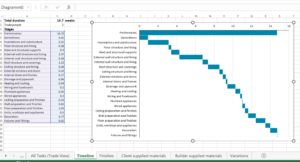
The Excel export also includes dedicated tabs for Finishes, Client-Supplied Materials, Builder-Supplied Materials and Variations, giving you a clear breakdown of finishing materials and labour, supplied materials, and any changes made to the project. The Variations tab also highlights changes, such as removed tasks, making it easy to see what has been added or taken away. With everything exported into Excel, you can then sort, filter and analyse the information however you need.
By the way, the Excel export is also fully compatible with Google Sheets.
Exporting a PDF and Word Doc
PDF and Word exports serve a slightly different purpose to Excel, as they’re designed primarily for client-facing documents. They provide a professional way to present your project information and can include details such as your company logo, client name, email address and project address.
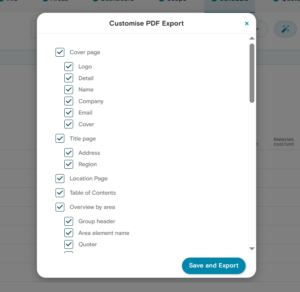
Depending on the size of the project, you may want to consider unticking some of the options selected by default, particularly if the export is likely to run to 50+ pages.
A more detailed document may be appropriate for larger tenders, but may be excessive for smaller residential projects. We’d recommend keeping the Table of Contents selected, particularly for longer documents, as it gives clients an easy way to navigate the project information.
What’s particularly useful is that the export gives you a clean, accurate document, without the risk of figures being copied across incorrectly when compiling documents manually. It also gives clients greater transparency, allowing them to review the scope and costs in detail.
Best of all, it provides a clear written point of reference for both you and the client that helps prevent misunderstandings and protects against scope creep.
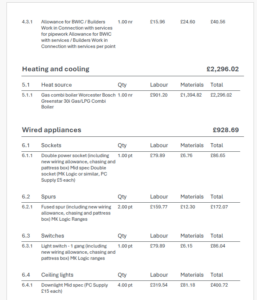
The Word document contains exactly the same information as the PDF, but remains fully editable. This gives you complete control if you want to amend any formatting, wording or figures before sending it to a client. Once you’re happy, you can simply save the Word document as a PDF to prevent the recipient from making changes.
We’re always improving BuildPartner to make project management faster, clearer, and more transparent. If there’s anything you’d like to see improved or added, we’d love to hear from you. Email us at [email protected]