
Feature Overview: Inviting Team Members and Setting Permissions
If you’re working on a project with colleagues or other members of your team, BuildPartner makes it easy to invite users and control what they can access and edit. In this guide, we’ll show you how to invite team members to a project and choose their permission level.

How To Invite Team Members
To invite a team member, log in to BuildPartner and open the specific project you want to invite them to. Each project is managed separately for version control, so team members need to be invited to each project individually.
- Go to the Info tab.
- In the left-hand pane, find Project Access.
- From here, you can invite the team member to the project.
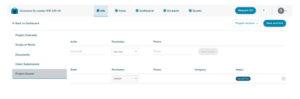
You’ll see your own email address and permission level listed as Owner.
In the field above, enter the name of the person you want to invite. You can then select their permission level:
- Can read – allows them to view the project but not make changes.
- Can update – allows them to view and make changes to the project.

Once you’ve checked the details, click Send Invite.
The recipient should receive the invitation email almost instantly. It will look like this:

To access the project, the recipient needs to click Access in the invitation email. They’ll then be directed to set up a BuildPartner account if they don’t already have one.
There is a limit to the number of users who can be invited to each project, depending on your plan:
- Basic: 1 user
- Starter: 3 users
- Standard: 5 users
- Pro: 10 users
Bonus Tip!
For version control, you may want to create a copy of your project before sharing it with others. This gives you a backup of your original project, or allows another team member to work independently on a separate version so you can compare the results.
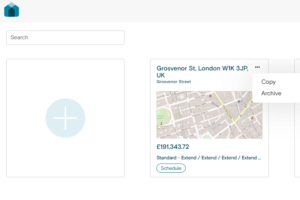
There are two ways to copy a project. The first is from the Project Summary page (which you can access at any time by clicking the BuildPartner logo in the top-left corner). Find the project you want to copy, click the three dots, and select Copy.
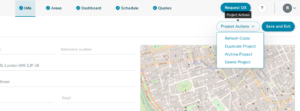
The second way to duplicate a project is to open the project, head to the Info tab, click the Project Actions dropdown, and select Duplicate Project.
We’re always improving BuildPartner to make collaboration easier, help teams work together more efficiently, and keep everyone working from the same project information. Let us know how you’re finding the collaboration features or what you’d like to see next by emailing us at [email protected]