
Feature Overview: Toggling All Finishes To Client-Supplied Or Builder-Supplied
When building a cost plan, you or your client may prefer an estimate for labour and materials only and exclude all finishes for the homeowner to supply. This is now very easy to do thanks to the “Toggle All Finishes” feature. With it, you can update finishes in bulk in just a couple of clicks, saving you time and reducing the risk of errors. In this article, we’ll show you how.

How To Toggle All Finishes
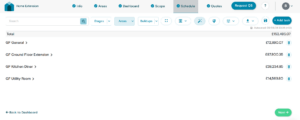
To get started, head over to the Schedule page. You’ll see an icon that looks like a paintbrush. Hover over it, and it’ll reveal a message: “Toggle finishes to client-supplied/builder-supplied”.
Before clicking, you may find peace of mind in creating a copy of your project, in case the bulk changes don’t produce the outcome you’re after. You can do this via the Info tab > Project Actions > Duplicate Project.
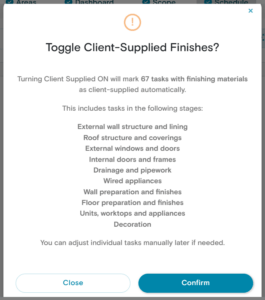
When you’re ready, click the paintbrush icon. A pop-up message will appear confirming the action. The change is fully reversible, so you don’t need to worry, and you can also manually adjust items afterwards.
For example, in a list of 67 finishes, you might only need to override a handful, e.g., five or six specific items the builder will continue to supply. This is far quicker and easier than scrolling through and selecting 60+ items individually.
When you’re ready, Click Confirm to proceed.
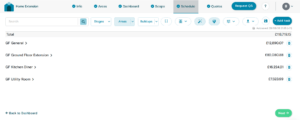
After changing to client-supplied, in the example of a 35m² home extension, the overall cost reduced from £153.5k to £118.7k (a 22.7% decrease). This decrease is indicative only and will vary depending on the project type.
Drilling Down Into The Changes
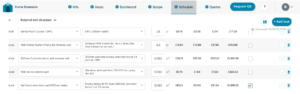
To sense-check the detail, head to the Schedule page and click the collapse icon (shown as a plus symbol). This will expand the full itemised breakdown. You’ll also see a column with checkboxes for client-supplied items. A tick indicates the client is supplying that item.
To see how this applies in practice, take the External Wall Structure section (screenshot below). Here, bricks are classified as a finishing material and will now default to client-supplied. However, items such as wall ties, concrete blocks, and the damp-proof course are classified as building materials.
To revert this change and switch everything back to builder-supplied, simply click the paintbrush icon again and select confirm. This will restore the original cost and remove all client-supplied checkmarks.
Cost Breakdown Overview
If you want a top-level view of finishing and building material costs, head to the Dashboard and scroll to the Resource Cost Breakdown section.
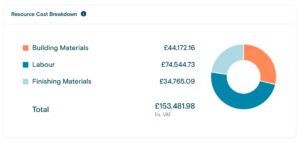
This is particularly useful when you start toggling items manually, as you can immediately see the impact and helps you align the cost plan with the client’s budget.
We’re continually improving BuildPartner to make quoting for projects easier, faster, and as frictionless as possible. If you’ve got feedback on the Toggle Finishes feature or anything else you’d like to see improved, drop us a line at [email protected]