
Feature Overview: Inviting Contractors To Tender for Your Project
Inviting contractors to your project in BuildPartner makes it easy to request quotes and compare pricing side by side in one place. It brings all your tender activity into a single, centralised dashboard so nothing gets lost in email threads or spreadsheets. This guide explains how to invite contractors and streamline the quotation process from start to finish.

Finding and Filtering Suggested Contractors
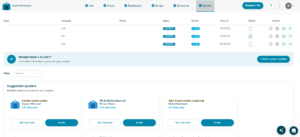
To get started, head over to the Quotes page. Beneath the benchmark costs (low, mid, and high estimates), you'll find a section titled Suggested Quoters. Here, you'll see a selection of contractor tiles displaying the company name, contractor name, and their distance from your project, based on the postcode you entered on the Info tab when creating your project.
Use the Filter: Distance dropdown to narrow your list of suggested contractors based on how close they are to your project. You can choose to display contractors within 5, 10, 25, or 50 miles.
Alternatively, scroll past the first few contractor tiles and click the View All button beneath them. This opens the list of suggested contractors, allowing you to browse businesses located up to 150 miles from your project.
Getting An Estimate
To get an estimate, start by reviewing the list of suggested contractors and carrying out your own independent research where helpful, such as checking platforms like Google, Trustpilot, and Checkatrade for reviews and ratings. This’ll help you narrow down a shortlist of suitable contractors.
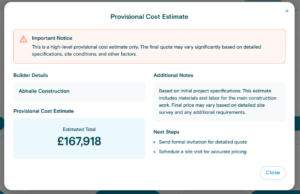
Once you’re ready, click Get Estimate to compare their pricing against your cost plan. This is a high-level, provisional estimate based on your initial project specifications, which includes materials and labour for the main construction work, but the final price may vary following a detailed site survey.
Inviting A Contractor To Quote
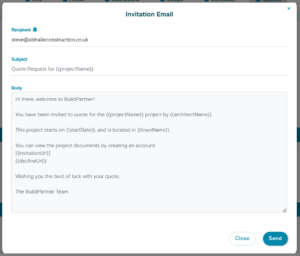
To invite a contractor to quote, click Invite on their tile. Nothing will happen immediately. A pop-up invitation email will appear, containing the contractor’s email address and a pre-written message body that cannot be edited, although you can edit the subject line if required.
In the body of the email, you may notice custom values, e.g., {{projectName}}. These are automatically pulled from your project’s Info page. Once you’re happy with the details, click Send to send the invitation.
Already Have A Contractor In Mind?
If you already know a contractor, click the + Add custom builder button. A field will appear where you can enter the contractor’s email address and send the invite. They can then submit a quote for your project using BuildPartner’s functionality, even if they are not a paying subscriber.

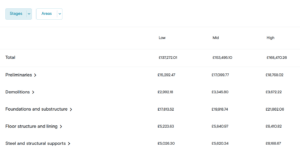
Once contractors submit a quote through BuildPartner, they’ll appear on your Quotes page, where you can compare them using the Compare Quotes button. You can view a full breakdown of each quote by stage or area, and drill down into individual tasks for a detailed view.
We’re continuously refining BuildPartner to make quoting, comparison, and contractor collaboration more transparent and reduce friction. Let us know how you’re finding things or what you’d like to see by emailing us at [email protected]