
Introducing our newest feature, the BuildPartner AI Chatbot! It’s built directly into your project and acts as an intelligent assistant to manage schedules, update project areas, review costs, define scopes of work, and retrieve key project information.
Instead of navigating through multiple screens or manually making changes, you can simply tell the chatbot what you need, and it’ll take care of the rest. The result is less admin, faster project management, and more time to focus on delivering the job.
To get started, look for the AI widget (three stars ✨) in the bottom-right corner of your screen and click it to open the chatbot. Here’s an overview of what it can do for you.
1. Manage Project Areas
Using the AI chatbot, you can directly manage your project areas.
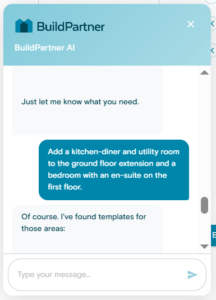
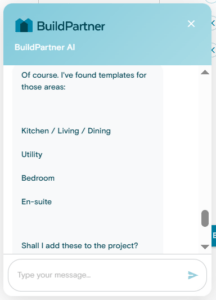
Your schedule is built around “areas” like rooms, extensions, and other parts of the build; and with the chatbot, you can add a new area, change an existing one, or remove something completely just by telling it what you want.
It handles the updates instantly, keeping your schedule accurate without you having to dig through pages/tabs or without you needing to manually rebuild anything.
For example:
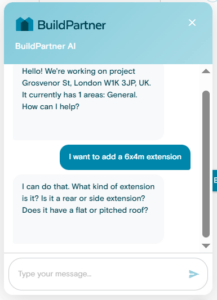
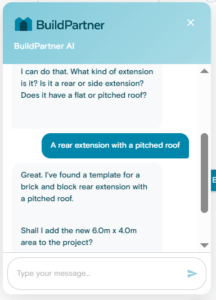
- Add New Areas. “I want to add a new bathroom” or “a 3m x 2m bathroom.” The AI pulls in a ready-made template with all standard tasks and materials, from demolition and first-fix plumbing through to tiling and paint.
- Update Dimensions. “The GF rear extension is now 6.5m x 4.5m.” The system automatically updates all linked quantities, recalculating floors, walls, ceilings, and all related materials like insulation, plasterboard, skirting, and paint.
- Remove Areas from the Project. “We’ve decided against the en-suite, please remove it.” Once confirmed, the AI removes the area along with all associated tasks, materials, and costs from the project.
The AI will always ask you to confirm before deleting anything.
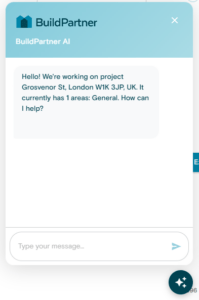 |
 |
 |
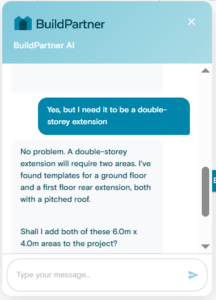 |
The AI will also prompt you for missing information when needed. If your request is incomplete, it won’t guess. It will ask for clarification to make sure everything is accurate.
So, if you ask to add an extension, it will guide you through the setup by confirming details like whether it’s a front, side, or rear extension, and then ask for the dimensions.
2. Manage Schedule Tasks
The AI can also manage the schedule tasks, that is, getting into the fine details of the project, item by item, within a specific room or area. It can:
- Add a Task. Add missing items to a template (e.g. “install a boiling water tap” in a kitchen).
- Update a Task. Change quantities or specs instantly (e.g. 6 downlights to 10, or swap “magnolia” paint for a specific Farrow & Ball colour).
- Delete a Task. Remove anything you don’t need (e.g. a heated towel rail).
 |
 |
In short, it lets you micromanage the to-do list for any area, ensuring the schedule is a perfect match for the specific requirements of your job.
3. Review Project Costs
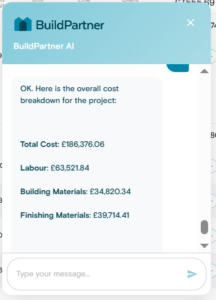
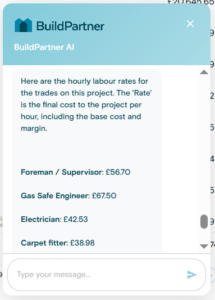
The AI chatbot can also help you review project costs across your project or individual areas, giving you clear visibility of labour, materials, and profit.
- Cost Breakdown. See the full project price broken down into labour, materials, and profit/margin. You can request this for the whole project or a specific area, e.g. “total cost of the en-suite”.
- Labour Rates. View hourly rates for each trade (e.g. plumber, electrician), so you can understand exactly how labour costs are built up.
 |
 |
It’s handy for giving you a clear, transparent view of your project’s finances without having to do any investigation.
4. Manage Scope of Works
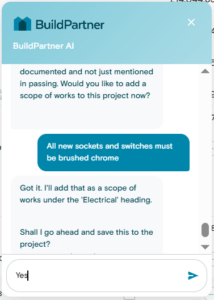
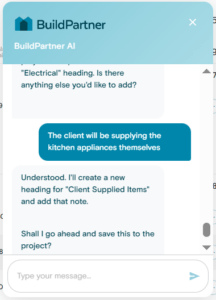
The AI chatbot can also help you manage the scope of works. You can add any specific details you want included in the build. For example:
- “All new sockets and switches must be brushed chrome.”
- “I want underfloor heating throughout the ground floor extension.”
- “The client will be supplying the kitchen appliances themselves.”
- “The existing boiler will be reused and does not need to be replaced.”
The AI will then group these items under logical headings like "Electrical," "Plumbing," "Finishes," or "Client Supplied Items".
 |
 |
5. Answer Project Questions
The AI chatbot can act as your single point of reference for key project information, giving you instant access to the data you need.
- Answer Project Questions. Get key project details like address, spec level, key dates.
- Project Basics. Retrieve the full address, client name, or project reference number.
- Quality and Scope. Check spec level (Standard, Basic, High) and original summary of works.
- Project Files. See how many documents (plans, reports, photos) are attached.
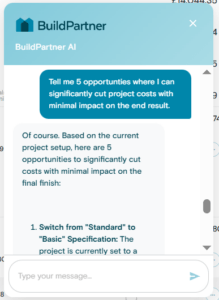
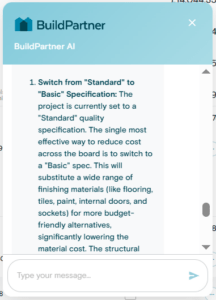
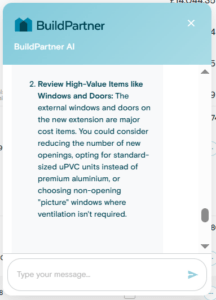
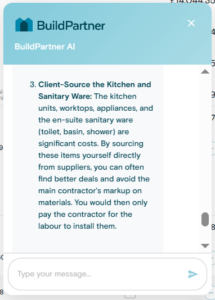
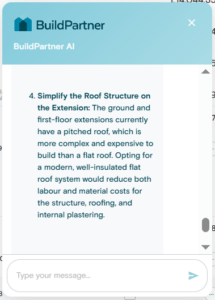
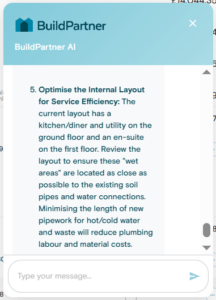
It can also help you make better decisions on the job by suggesting cost-saving options or highlighting where small changes could add value to the build.
 |
 |
 |
 |
 |
 |
6. Project Creation
At the outset, when creating your project, you’ll be presented with an option to describe your project and upload any corresponding attachments for plans.
For instance, if you tell it you’re building an extension, the chatbot will ask you a series of questions about it in order to gather accurate prices, including the postcode of the project.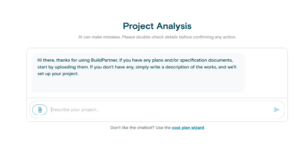
Or if you prefer, you can always use the cost plan wizard to select your project elements.
This is a new feature, so please let us know if you run into any issues. We welcome feedback and are always keen to hear how we can improve BuildPartner.